Saturday, October 30, 2010
HOW TO: Enable Cellular Data Network (GPRS/EDGE/APN) Settings in iPhone 4 on iOS 4.1
I have jailbroken iPhone 4 on iOS 4.1, I got it from carrier called Mobinil (Egyptian carrier) and then I changed to Vodafone Eg, so I was trying to find a way to change APN (i.e. Access Point Name), and finally i caught it, so that I will share this with you, I will show you a step by step guide to do this on your jailbroken iPhone 4 running iOS 4.1
STEP 1: Go to Cydia and search for "Supreme Preferences 3.0" and then download it.


Note: you have to this guide every time you restart your device.
12:56 PM 0
Activate FaceTime on iPhone 4 in Middle East with MiddleWhat
In case you are unlucky and you can't get FaceTime in your country as in the Middle East because Apple for some reason disabled it, you can try MiddleWhat tweak that is available for jailbroken devices for free. This tweak will activate FaceTime on iPhone 4 in any unsupported countries.

For iPhone 4 only.MiddleWhat is available in Cydia via BigBoss repository for free but you need a jailbroken device so you can follow our step by step guide posted here to jailbreak your iPhone using Limera1n. Once your iPhone 4 is jailbroken, navigate to Cydia and search for MiddleWhat under Bigboss repository.
This package enables FaceTime if (and only if) it is disabled solely due to region restrictions. This will NOT enable FaceTime for any other reason. it is only usable on iPhone 4. It does NOT have any visible output, icons, or configurable options. It can be cleanly uninstalled.
10:23 AM 0
The Banned White iPhone 4 Promo Video [Humor]
In case you are unlucky and you can't get FaceTime in your country as in the Middle East because Apple for some reason disabled it, you can try MiddleWhat tweak that is available for jailbroken devices for free. This tweak will activate FaceTime on iPhone 4 in any unsupported countries.
For iPhone 4 only.MiddleWhat is available in Cydia via BigBoss repository for free but you need a jailbroken device so you can follow our step by step guide posted here to jailbreak your iPhone using Limera1n. Once your iPhone 4 is jailbroken, navigate to Cydia and search for MiddleWhat under Bigboss repository.
This package enables FaceTime if (and only if) it is disabled solely due to region restrictions. This will NOT enable FaceTime for any other reason. it is only usable on iPhone 4. It does NOT have any visible output, icons, or configurable options. It can be cleanly uninstalled.
10:20 AM 0
Wednesday, October 27, 2010
You May Never See a White iPhone 4 !

2:26 PM 0
Tuesday, October 26, 2010
White iPhone 4 Delayed Until Spring 2011
Yesterday we informed you that you can start reserving your white iPhone 4 from the app store app on your device. Unfortunately, earlier today, we were shocked by a new report that a representitve from the Cupertion based company has informed Reuters that white iPhone 4 delayed until spring of 2011. That was really shocking!

(Reuters) - Apple Inc said on Tuesday that it would delay release of its eagerly anticipated white iPhone again, this time until next spring.If you are a tech fan, you may know that this is the third delay for white iPhone 4, first when they launched it, second when Apple reported that it will be available later this year, and now we have to wait to the spring of 2011. This also indicates that all rumors about iPhone 5 in 2011 are killed now, what do you think?
11:16 PM 0
Monday, October 25, 2010
iOS 4.1 Critical Bug Lets You Bypass Passcode Lock [Video]

Try it and share us the results in the comment section below.
You may also like:
2:12 PM 0
VLC Media Player Updated to Support iPhone and iPod Touch
Big milestone ! VLC Media Player has just been updated to version 1.1.0 to support iPhone 4, iPhone 3GS and iPod touch. As you know VLC media palyer is one of the best media players for Mac and Windows. VLC Media player plays most multimedias files and various streaming protocols.

This new version of VLC brings:We've tested the new version on iPhone 4 and it seems that the graphics and animations are really fluid with very high quality
- Runs on the iPhone 4, iPhone 3GS, and the recent iPod touches
- You can now delete files from the application, without having to go through iTunes
- Many more extensions are being recognized.
- Much faster decoding thanks to assembly optimizations
Download VLC Media Player for iPhone and iPod touch [iTunes Link]
You may also like:
3:04 AM 0
Saturday, October 23, 2010
iSeeU Brings FaceTime Video Calls to iPhone 3GS
Yes, you read it right! Apple provided the iPhone 4 with front face camera to allow video calling with other devices. Also, there's an endless list of apps that allows you to make video calls with some features on iPhone 4, the apps are also compatible with iPhone 3GS but it's very silly to make video calls without front camera.

The accessory is available on the official site for $24.95, they will be shipping this accessory later this month. Will you get it and cancel the idea of updating to iPhone 4? [via TiPb]
12:45 PM 0
Friday, October 22, 2010
Download iOS 4.1 Custom Firmwares iPhone 4 / 3GS / 3G
Of course you know that PwnageTool 4.1 was out this week to jailbreak all iOS devices on iOS 4.1 and also preserves the baseband to keep your carrier unlock. The problem is that it's a complicated process and it only works on Mac OS X. So, for all who suffering from those problems, we could get pre-jailbroken iOS 4.1 custom firmwares [credit goes to iPhoneHeat].
STEP 1: Download the iOS 4.1 custom firmware for your device at the end of the page. Also download and install iTunes 10.
STEP 2: Join the splited custom firmwares you downloaded using BetterZip for Mac OS X or HJSplit for Windows to make them only one .IPSW file.
STEP 3: Start iTunes and put your iPhone into DFU mode by following this steps:
- Hold Power and Home buttons for about 10 seconds
- Then release the Power button but without releasing the Home button for 10 more seconds
- Your device should now be into DFU mode
STEP 4: Now, You will have to restore your iPhone to the jailbroken custom firmware by Clicking on the iPhone icon on the left sidebar of iTunes then hold left “alt” button (“Shift” button on Windows) on the keyboard and then click on “Restore” then release the alt button, now Select the custom firmware you already download and let iTunes go in a bunch of process.

STEP 5: After your iPhone is restored and jailbroken successfully. Follow our guide posted here to unlock iPhone 4, iPhone 3GS and iPhone 3G using Ultrasn0w carrier unlock.
iPhone 4 Custom Firmware, Activated [File 1, File 2, File 3]
iPhone 3GS Custom Firmware, Activated [File 1, File 2]
iPhone 3G Custom Firmware, Activated [File 1, File 2]
3:58 PM 0
Wednesday, October 20, 2010
Jailbreak iOS 4.1 on All Devices with PwnageTool 4.1 [GUIDE]
Few minutes ago we posted that PwnageTool 4.1 for Mac OS X is available for download; and now here we are back with full step by step guide to jailbreak iPhone 4, 3GS, 3G, iPod touch 4G, 3G on iOS 4.1 and iPad on iOS 3.2.2 using the new version of PwnageTool for Mac; hit the jump for guide.
STEP 1: Download & install the latest version of iTunes & make sure your device is not on iOS 4.1 (links at the bottom).
STEP 2: Start iTunes, connect your device to your computer via USB and sync your iPhone then back your data.
STEP 3: Start PwnageTool and select your devices (iPhone 4 used in this guide).

STEP 5: On seeing this message, hit "No" to preserve your baseband to be able to unlock.
STEP 6: PwnageTool will start creating the custom pre-jailbroken firmware for your device.


Download iTunes 10 for Windows & Mac
Download iOS 4.1 for iPhone, iPod touch & iPad
Download PwnageTool 4.1 for Mac OS X
3:22 PM 0
Sunday, October 17, 2010
Jailbreak iPhone 4, 3GS, iPod touch 4G, 3G on iOS 4.1 with Greenpois0n on Mac OS X [How to Guide]
Chronic Dev has just released the Mac OS X version of Greenpois0n to jailbreak iOS 4.1 on iPhone 4, iPhone 3GS, iPod touch 4G/3G and iOS 3.2.2 on iPad. Now I have just prepared the step by step Mac guide to jailbreak iOS 4.1 on iPhone 4/3G and iPod touch 4G/3G with Greenpois0n.
STEP 1: Download Greenpois0n jailbreak (link at the end)
STEP 2: Connect your iPhone/iPod to your computer via USB then launch Greenpois0n jailbreak application and hit "Jailbreak" button.

- Now you have to press and hold the sleep button for 3 seconds.

- Continue holding sleep, then press and hold home for 10 seconds.

- Now release sleep button but keep holding home for 15 seconds.


STEP 7: Now press "Cydia", then "Install Cydia". After finishing you will be asked to remove Loader from your device, click "Remove", then press Home button, the device will restart automatically.
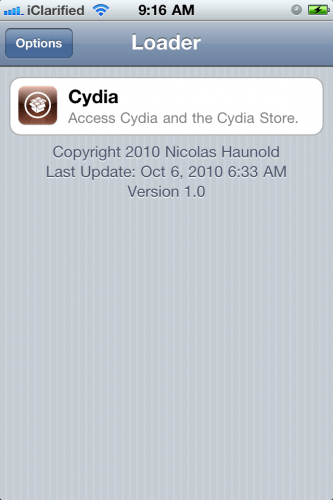


STEP 8: After your device restart you will find the Cydia icon, Congratulations.

Note: Since there is no way to unlock 05.14.02 / 2.10.04 basebands, you should upgrade to iOS 4.1 with preserving your baseband before using Greenpois0n jailbreak by following our guide (for iPhone 4 ONLY) posted here.
Download iOS 4.1 for iPhone 4/3GS.
Download Greenpois0n jailbreak for iOS 4.1.
You may also like:
- Save SHSH Blobs of iOS 4.1 Now, Apple About to Patch Limera1n Untethered Hack [Warning].
- Untethered Jailbreak Guaranteed for All Future Firmwares on iPhone 4, iPod Touch 4 and iPad.
- Limesn0w Unlock Tool Will Never be Real !
1:21 PM 0
Download Greenpois0n for Mac OS X to Jailbreak iOS 4.1 on iPhone 4, 3GS, iPod Touch 4G, 3G and iOS 3.2.2 on iPad
A new version of Greenpois0n for Mac OS X has been released. For who don't know, Greenpois0n is untethered jailbreak for iOS 4.1 on iPhone 4/3GS, iPod touch 4G/3G and iOS 3.2.2 on iPad. Now we have the both jailbreaks (i.e. Greenpois0n and Limera1n) compatible with Mac.

Download Greenpois0n for Mac OS x
You may also like:
12:52 AM 0
Saturday, October 16, 2010
White iPhone 4 Spotted, Owner Explains Why You Can't Have One
If you’ve been waiting for a white iPhone 4, you’ll wait more. Today's reports from Pocket-lint shows a real white iPhone 4 spotted in New York. They spotted a reporter at a recent press event using his white iPhone 4. They went near to him and they asked about the way he got it, he answered that a friend of his at Apple HQ hooked him up with the device. Then, they asked him about the reason of delay.

Well, according to our jacket wearing gent, Apple is having trouble getting its two suppliers in the Far East to match the white used in the manufacturing of the parts. The white home button colour doesn’t match the white front face plate colour, it turns out.There have been a lot of reasons floating on the web as color issues and light leak. In my opinion, I don't think that this home button would take much. Well, I don't think that Apple would delay a device for months because of matching the color of a button. What do you think?
You may also like:
1:19 AM 0
Friday, October 15, 2010
Limesn0w Unlock Tool Will Never be Real !
A few days ago we had hopes when we reported you about the Limesn0w unlock tool which was expected as a new surprise from Geohot to unlock basebands 05.14.02 and 02.10.04 on iPhone 3GS and iPhone 4G on iOS 4.1, but now Geohot cut in any doubt, when he announced that Limes0w unlock tool will never be real in his limesn0w.com website.

This will never be real. Media, understand it. ~geohotSo that, if you see any picture or video claiming the unlock of those basebands by limesn0w, they are completely fake.
We have no choice but waiting the new unlock from the Dev-team, for who don't know, the unlock for the above mentioned basebands will be released after iOS 4.2 official release by November.
You may also like:
11:33 AM 0
PwnageTool to Jailbreak iOS 4.1 on iPhone 4, 3GS, iPod Touch 4G/3G, Apple TV 2G and iOS 3.2.2 on iPad Demoed in Video
MuscleNerd has just shared a two minutes Youtube video testing the upcoming new version of PwnageTool which is based on Geohot's Limera1n bootrom exploit, the new PwnageTool version will allow you to restore custom firmwares without upgrading to 05.14.02/2.10.4 basebands on iPhone 3GS and iPhone 4 to be able to unlock them with the existing version of ultrasn0w. It will be compatible with iPhone 4, iPhone 3GS (new bootrom), iPod touch 4G/3G, iPad and Apple TV 2G.
As we reported earlier that PwnageTool will be released by the next Sunday. Stay tuned, we will keep you informed once PwnageTool go public and as usual it will followed with all step by step guides.
You may also like:
- How to Use: Limera1n and Greenpois0n. to jailbreak iPhone 4/3GS, iPod touch 4G/3G and iPad on iOS 4.1/3.2.2
- Limera1n and GreenPois0n: Let's Clean Out What's Going on!
- Create Free iPhone Ringtones with iTunes [How to Guide]
8:57 AM 0
HOW TO: Jailbreak iOS 4.1 on iPhone 4, 3GS, iPad, iPod touch 4G / 3G on Mac
We already broke the news and told you that Geohot with the help of some hackers could write Limera1n's code to work on Mac OS X. In case you don't know how to use the most easiest tool to jailbreak your iOS device, here's full step by step how to guide to jailbreak iOS 4.1 on iPhone 4, iPhone 3GS, iPod touch 4G, iPod touch 3G and iOS 3.2.2 on iPad.
NOTE: If you are using Ultrasn0w to unlock your carrier, then don't use the instructions below as the unlock for new basebands is not available yet. For iPhone 4 users, use the instructions posted here to preserve your baseband. For other devices, wait for PwnageTool to be released this weekend.
STEP 1: Download Limera1n for Mac OS X from here.
STEP 2: Connect your iPhone to your PC via USB then launch Limera1n and hit “make it ra1n”

- You iPhone will now be placed in recovery mode.

- Press both the power and the home buttons.

- When Limera1n asks you to, release the power button.
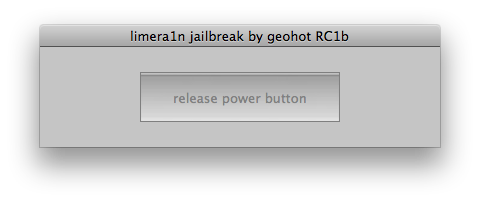
- Your phone will now be in DFU mode


STEP 7: Now simply restart your device and enjoy the jailbreak!
1:05 AM 0
Thursday, October 14, 2010
Download Limera1n for Mac OS X to Jailbreak iOS 4.1 on iPhone 4, 3GS, iPod Touch 4G, 3G and iOS 3.2.2 on iPad
Now we can say that Geohot love Mac, he has just released the limera1n jailbreak version for Mac, to jailbreak iOS 4.1 on iPhone 4, iPhone 3GS, iPod touch 4G, iPod touch 3G and iOS 3.2.2 on iPad. As you know limera1n is untethered jailbreak, limera1n Windows version has been released last Saturday.

We will prepare the guides for our Mac readers very soon, Stay tuned.
Download Limera1n jailbreak for Mac OS X
You may also like:
2:52 PM 0
Wednesday, October 13, 2010
Wi-Fi Sync 2.0 with 3G Sync, iPad and iPhone 4 Support Coming in December
Wi-Fi Sync (version 1.1) is a tweak available in Cydia for $9.99 which allows you to sync your iPhone and iPad with iTunes without Apple’s USB cable. The app is fast and cool, available in Cydia Store right now. The big one we are talking about now, is Synchronization over 3G. Yes, it has been confirmed that Wi-Fi Sync 2.0 coming in December with enable Sync over Wi-Fi, 3G, EDGE and VPN.

- Sync your iPhone over Wi-Fi, 3G, EDGE and/or VPN
- Major stability and speed improvements
- Native support for iPad & iPod touch 4G
- Direct integration with iTunes
You may also like:
6:52 AM 0
Tuesday, October 12, 2010
Jailbreak iPhone 4, 3GS on iOS 4.1 with Greenpois0n [How to Guide]
Few minutes ago we broke the news with the Chronic dev big surprise which is the Greenpois0n jailbreak for iPhone 4/3GS and iPod touch 4G on iOS 4.1 and iPad on iOS 3.2.2, as usual we prepared for you the how to guide to jailbreak your iPhone 4/3GS on iOS 4.1 with Greenpois0n jailbreak.
STEP 1: Download Greenpois0n jailbreak (link at the end)
STEP 2: Connect your iPhone to your computer via USB then launch Greenpois0n jailbreak application and hit "Prepare to Jailbreak (DFU)" button.

- Now you have to press and hold the sleep button for 2 seconds.

- Continue holding sleep, then press and hold home for 10 seconds.

- Now release sleep button but keep holding home for 15 seconds.


STEP 9: After your device restart you will find the Cydia icon, Congratulations.
Since there is no way to unlock 05.14.02 / 2.10.04 basebands, you should upgrade to iOS 4.1 with preserving your baseband before using Greenpois0n jailbreak by following our guide posted here.
Download iOS 4.1 for iPhone 4/3GS.
Download Greenpois0n jailbreak for iOS 4.1.
You may also like:
3:48 AM 0


